Contents
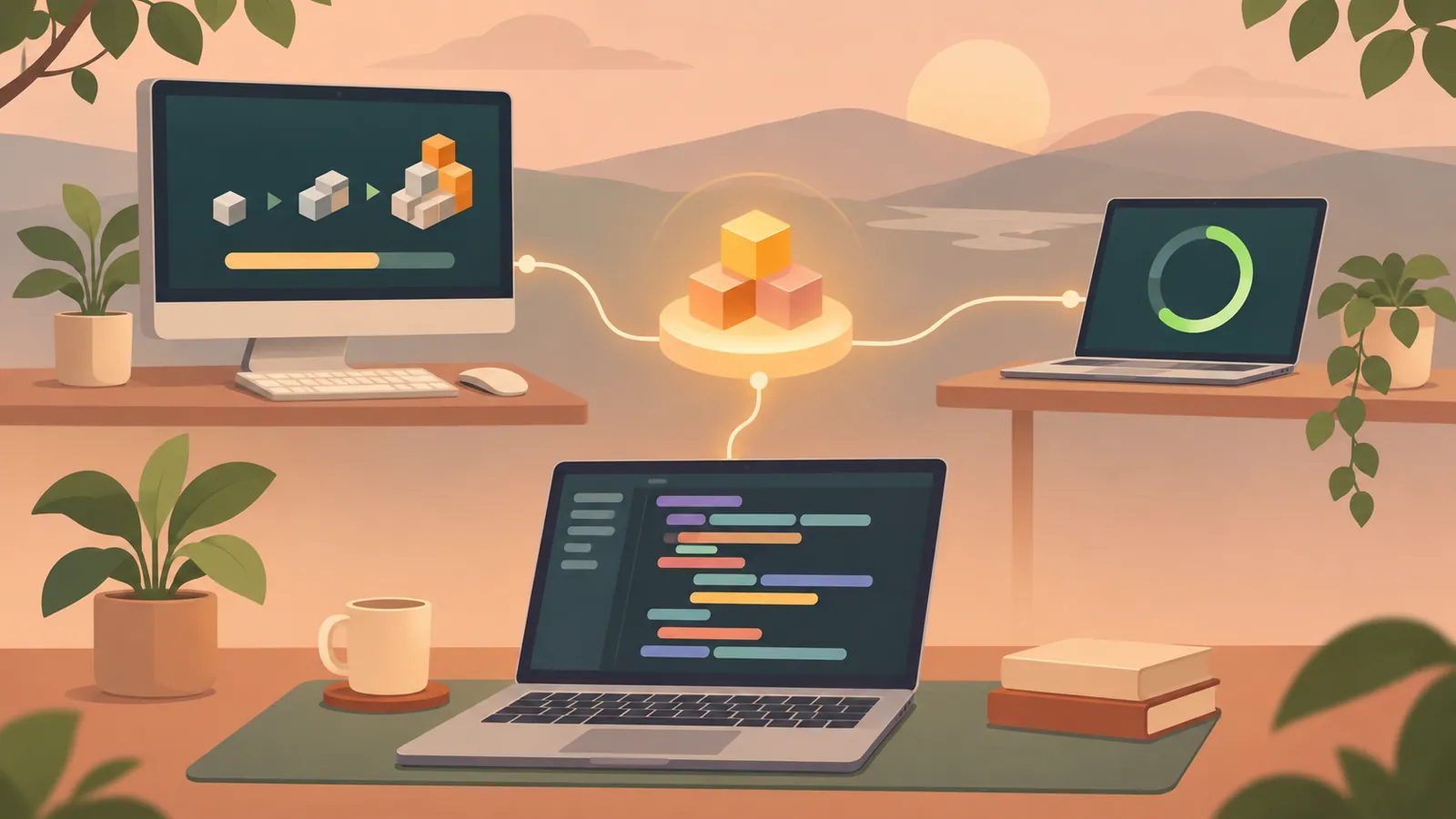
OpenAI dots now lets you connect multiple local computers to a single dot and choose which machine to use for a task. You can keep coding on your laptop while your dot builds or tests an app on another computer.
Key points#
- You can connect multiple local computers to a single dot and specify which computer handles each task.
- You can keep working on your main computer while running builds, Xcode tests, and UI checks on another machine.
- Each computer requires separate permission for dot access, even if it is already connected to Codex or has Work Sync enabled.
- While your dot is working, the selected computer must stay online with the ChatGPT app open.
What changes for developers#
OpenAI Developers announced this update on November 9, 2026. The practical change is that you can specify where your dot performs local work. You can assign tasks to a computer with the necessary tools, files, and development environment.
A dot can use files, code, and apps on the connected computer. It can also create ChatGPT Work or Codex tasks on that computer, or continue working on existing Codex tasks. Opening those tasks from the connected computer’s sidebar lets you review results and give further instructions separately from your main conversation with the dot.
The clearest use case is separating development from verification. You can keep editing on your laptop while another computer runs builds or a sequence of app interactions.
When a second computer helps#
OpenAI describes several development workflows. These are examples of tasks you can assign, rather than evidence of specific improvements in speed or reliability.
- Test an iOS app: Ask your dot to use Xcode on a second Mac to test the modified app and send screenshots of the results.
- Compare SDK environments: Run the same tests on your everyday laptop and another computer with an older SDK, then compare the results.
- Check UI updates: Have your dot perform a sequence of screen interactions on another computer and record where problems occur.
- Run builds on another machine: Assign builds and tests to a dedicated machine while you keep editing on your laptop.
Comparing SDKs is particularly useful when changing your usual development environment would disrupt other work. You can preserve that environment while using another computer to investigate whether an issue depends on an older SDK.
These workflows still require clear instructions. Specify the app or project, the tests to run, and the evidence you want back, such as screenshots or a record of failed steps.
Connect computers and assign work#
Set up access on each computer you want your dot to use.
1. Open the ChatGPT app on that computer. 2. Open your dot’s profile. 3. Grant your dot access to that computer. 4. When assigning work, specify which computer to use and what to do.
For example, ask your dot to test a specific app change in Xcode on a second Mac and return screenshots. Naming the computer and expected results makes the instructions more specific than simply asking it to “test the app.”
If you want work performed separately on multiple computers, ask your dot to create a separate task for each computer. You can also send instructions to the same dot from the ChatGPT mobile app and have it work on connected computers.
Check permissions and availability#
Dots require separate permission to access a computer. An existing Codex connection or enabled Work Sync does not let you skip this step. Permission remains valid after a task finishes, so treat connecting a computer as granting ongoing access rather than approving a single task.
During local work, the computer must stay online with the ChatGPT app open. Keep this requirement in mind when assigning tests to a machine you plan to disconnect or shut down.
According to the information provided as of November 2026, eligible plans are ChatGPT Pro for individuals, and Business Premium, Enterprise, Edu, and Healthcare for organizations. Availability also depends on region, age, and workspace settings. Check the latest eligibility requirements before planning a workflow that uses dots.
Next steps#
Connect one secondary computer through your dot’s profile, then assign a single build or test task, explicitly stating which computer to use and what results you want back.
Source: https://gihyo.jp/article/2026/11/openai-dots-multiple-local-computers
Contents